Manage User Permissions
Tenant administrators can grant or remove permissions for individual users in the Operational Portal. The available permissions depend on the tenant and enabled Fluxir features.
Which Permissions Can a Tenant Manage?
The permissions shown are those defined for the tenant side of Fluxir. These include tenant-applicable access to travel services and traveler data, invoicing and markups, tenant hierarchy and descendant management, and partner clients. Depending on enabled modules, the list can also include read access to shared reference data or integration information.
Open Permission Management
- Sign in to the Operational Portal with an administrator account that has permission to manage users.
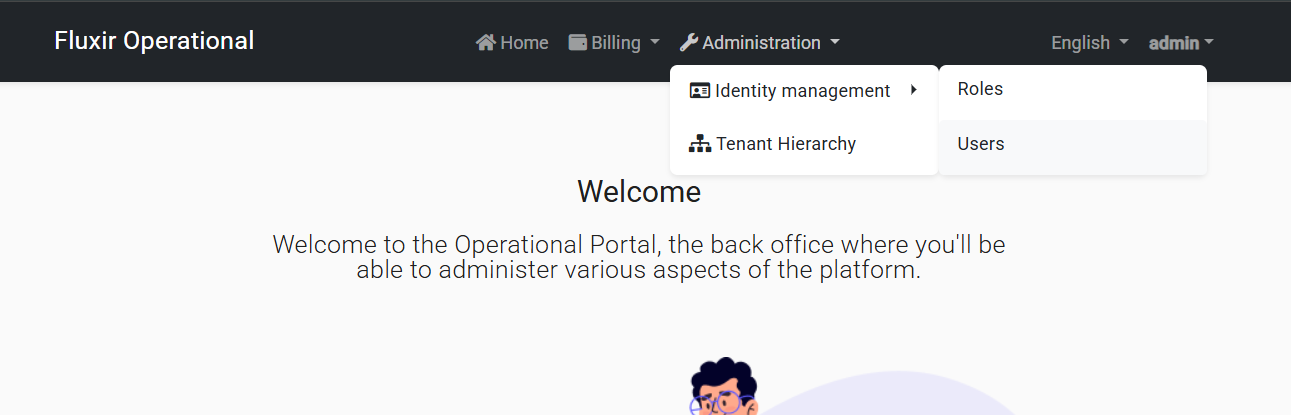
- Open Administration → Identity management → Users.
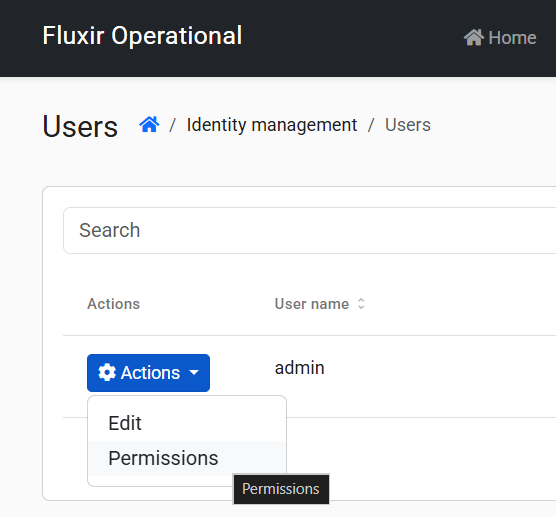
- Find the user and select Actions in that user's row.
- Select Permissions to open the Permissions Management dialog.
If Permissions is unavailable, ask your tenant administrator to verify that your account has the required user-management access.
Grant or Remove Permissions
The dialog organizes available permissions into groups. Expand or browse the groups, then select a permission to grant it to the user or clear it to remove a direct grant. Review the selection and choose Save to apply the changes. Choose Cancel or close the dialog without saving to discard your changes.
These changes apply to the selected user; they do not change permissions assigned to a role. A user can still have access through one of their roles even when that permission is not directly granted to the user. To change role-based access, manage the user's roles or update the role's permissions instead.
Only grant the access the user needs. The permissions available in the dialog are limited by tenant-side definitions and may differ between tenants.